Tuesday, October 27
2:07 PM
IMIJS is on the App Store & Google Play
Download the IMIJS app today and bring your family, community or organisation together — all in one place.
How to Use the IMIJS App
A complete visual walkthrough of every screen — from your home calendar to the dashboard, events, chat, checklists, and members — plus the privacy commitments we make to every user.
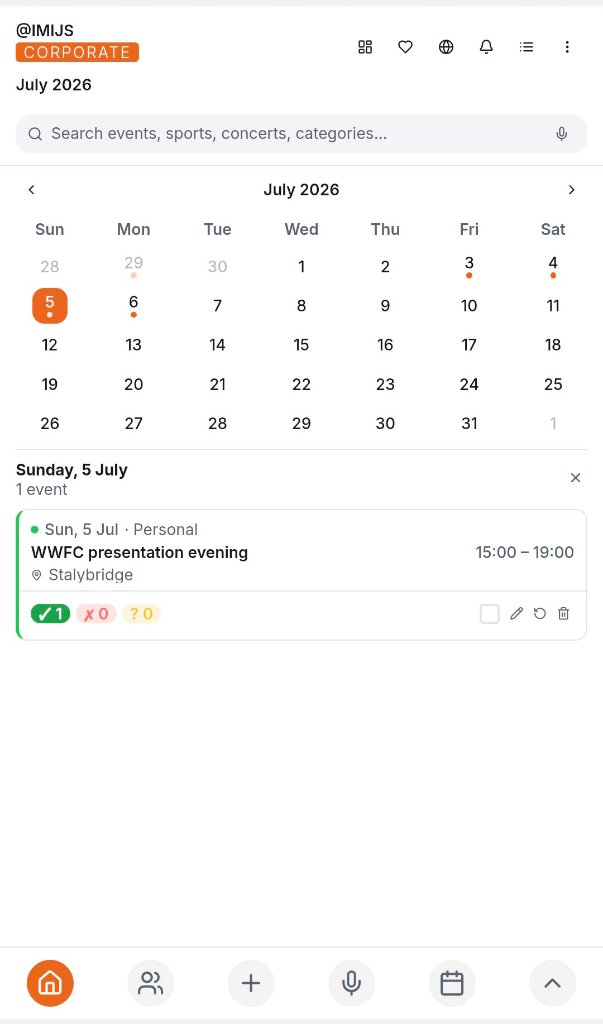
Home Screen & Calendar
When you open IMIJS, you land on the Home Screen. Your calendar shows the current month with orange dots marking days that have events. Tap any date to see event details below, including time, location, and RSVP status. Use the search bar to find events, sports, concerts, and categories. The bottom navigation bar lets you jump between Home, Groups, Add, Voice Search, and Calendar.
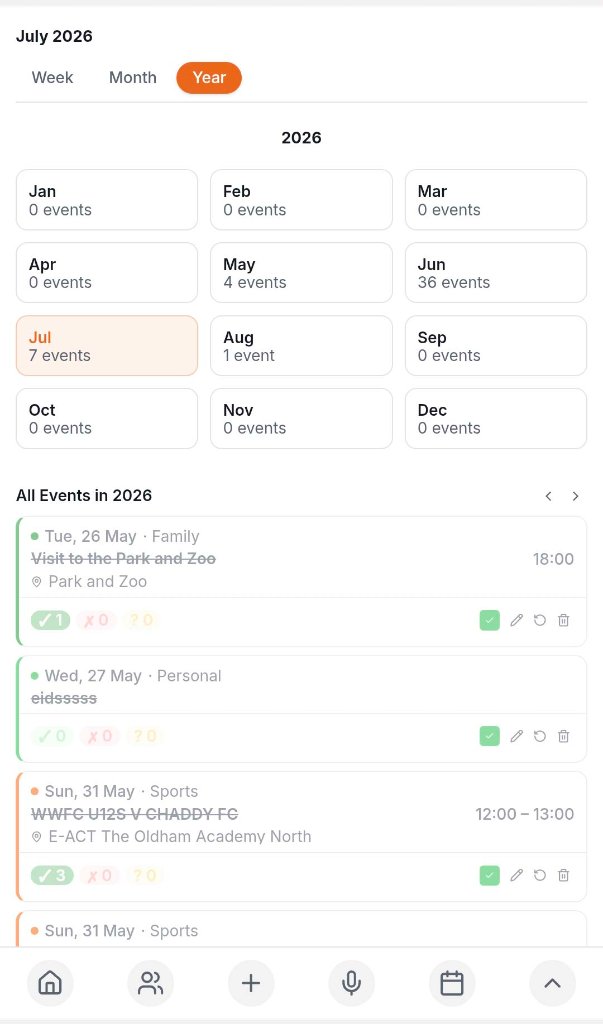
Calendar Views — Week, Month & Year
Toggle between Week, Month, and Year views using the segmented control at the top. Year view displays all 12 months as cards with event counts for each. Tap any month to zoom in, or browse the full event list with pagination arrows. Each event card shows the date, category, title, location, time, and RSVP counters.
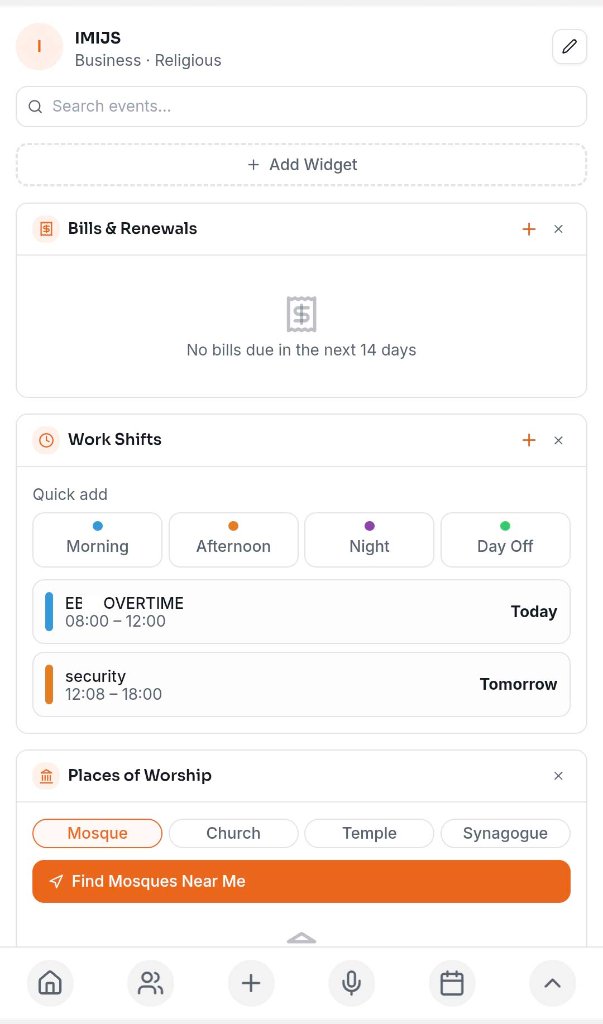
Dashboard & Widgets
The Dashboard is your customisable hub. Tap '+ Add Widget' to add modules like Bills & Renewals, Work Shifts, and Places of Worship. Each widget can be expanded, edited, or removed. The search bar at the top lets you quickly find events across your account.
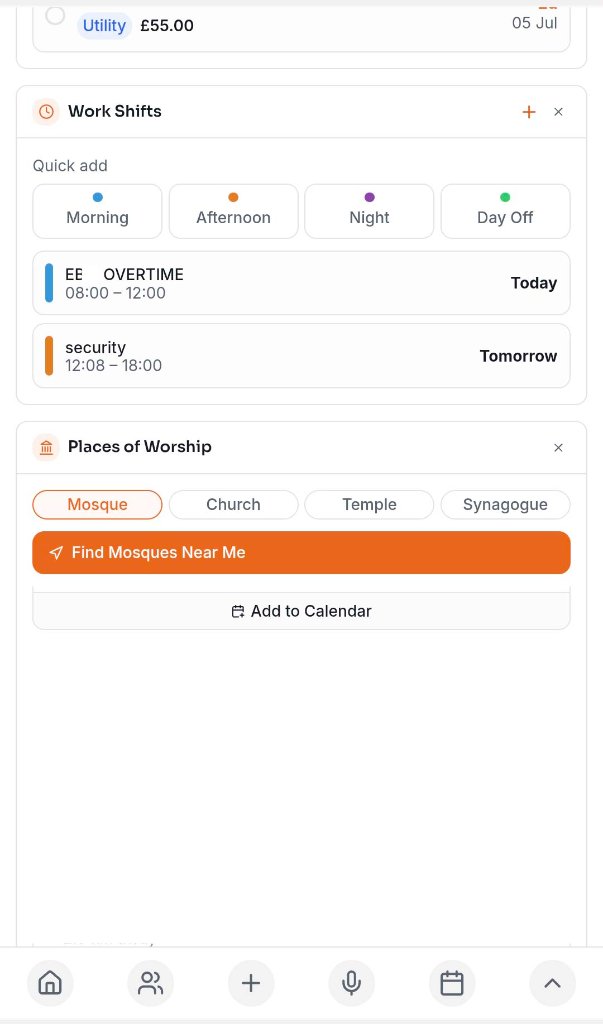
Work Shifts & Places of Worship Widgets
The Work Shifts widget lets you quick-add shifts by type — Morning, Afternoon, Night, or Day Off — each colour-coded. The Places of Worship widget helps you find nearby mosques, churches, temples, and synagogues, with a direct button to locate them and add prayer times to your calendar.
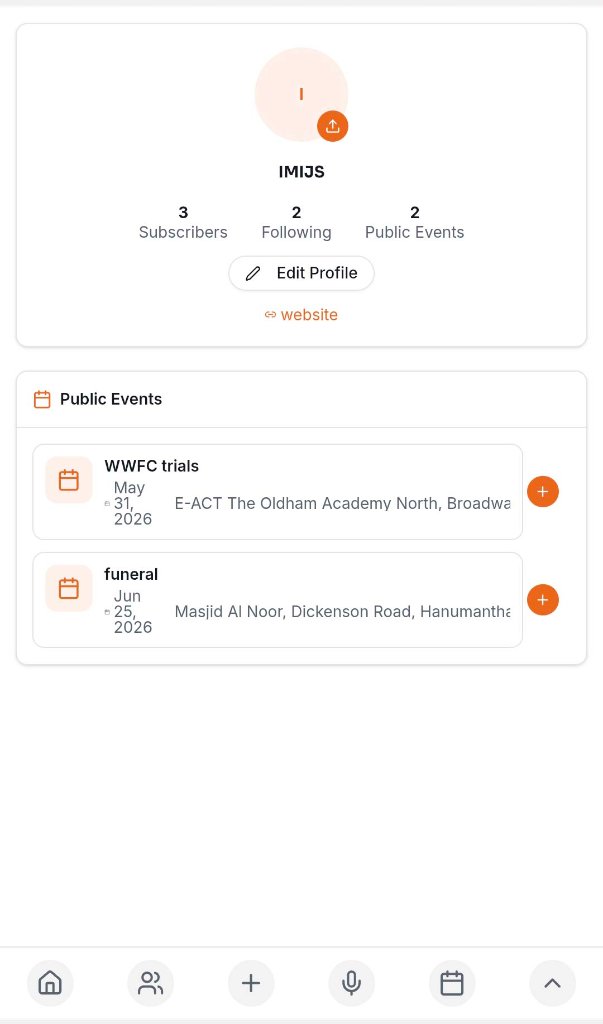
Your Profile
Your profile displays your name, subscriber and following counts, and public events. Tap 'Edit Profile' to update your details, or tap the pencil icon to make changes. Your public events are listed with dates and locations, and visitors can add them to their own calendar.
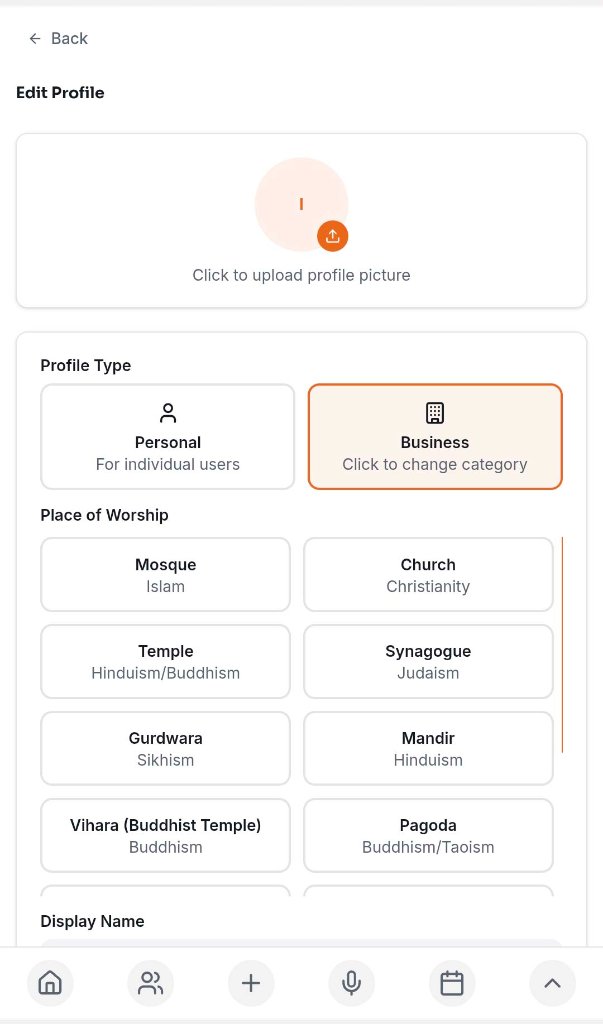
Editing Your Profile
In the Edit Profile screen you can upload a profile picture, choose your profile type (Personal or Business), and select your place of worship category. This helps IMIJS tailor content like nearby places of worship and relevant community events to your preferences.
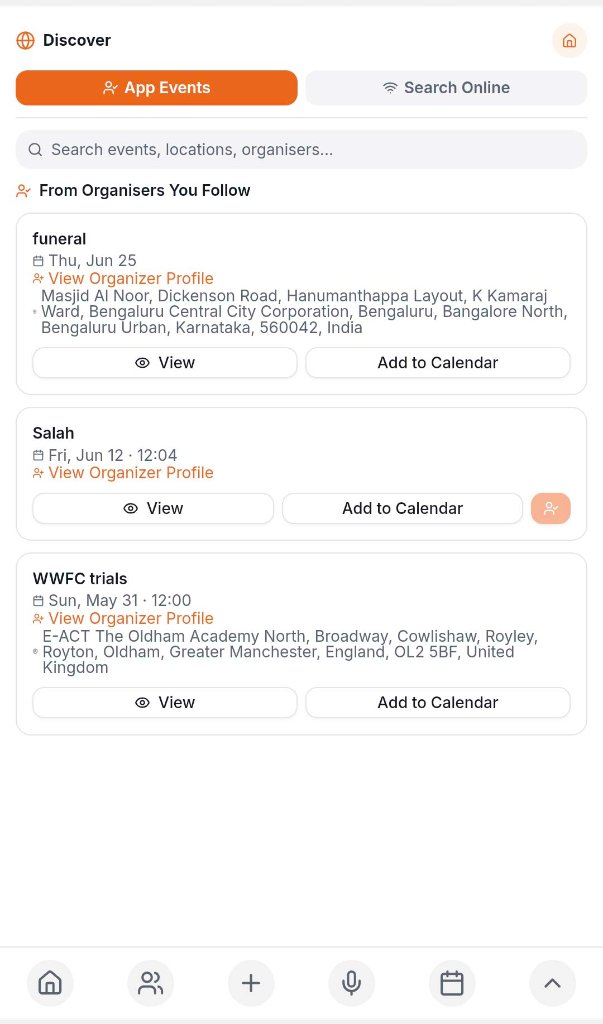
Discover Events
The Discover page lets you find events in two ways. 'App Events' shows events from organisers you already follow. 'Search Online' lets you search for external events by location and keyword. Each result includes the event title, date, venue, organiser, and buttons to view details or add it to your calendar.
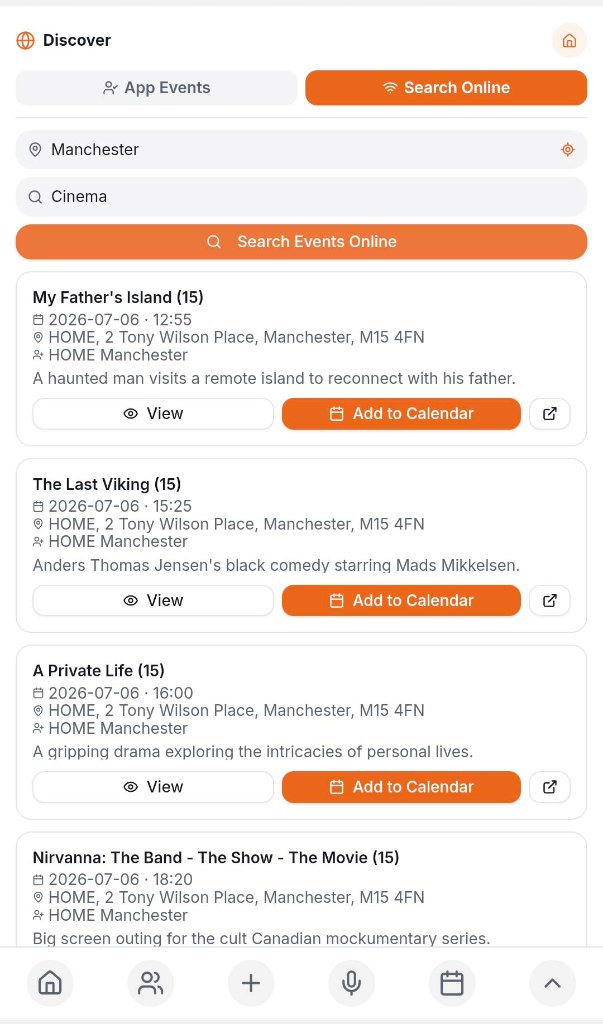
Searching for Events Online
Switch to 'Search Online' and enter a location (e.g. Manchester) and a keyword (e.g. Cinema), then tap 'Search Events Online'. Results show external events with full details, a link to the source, and the option to add them straight to your IMIJS calendar.
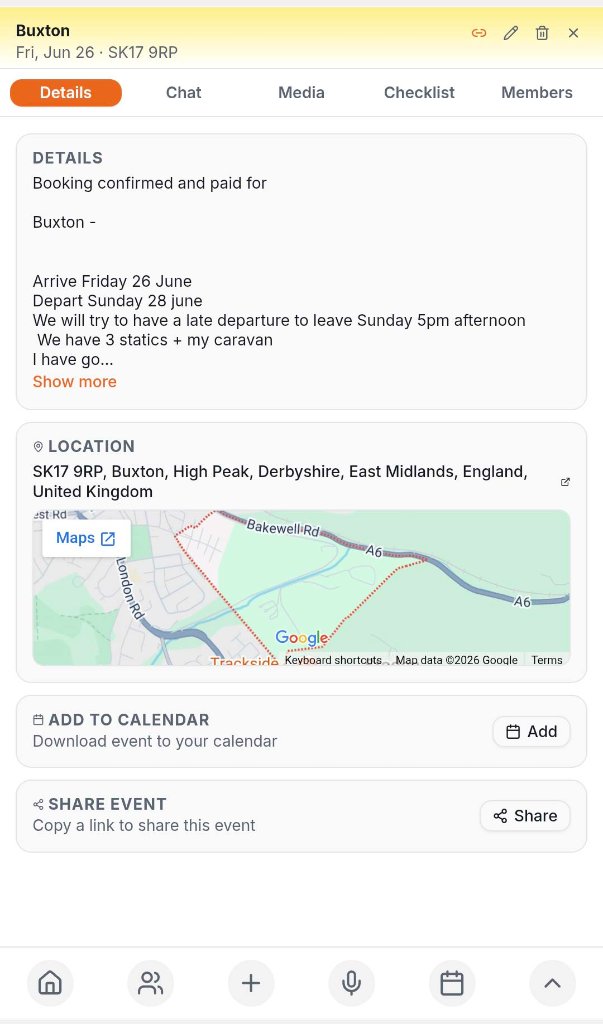
Event Details
Tapping an event opens its Details tab. Here you'll find the full description, an embedded Google Map of the venue, and buttons to download the event to your device calendar or share a link with others. Use the top icons to edit, delete, or close the event view.
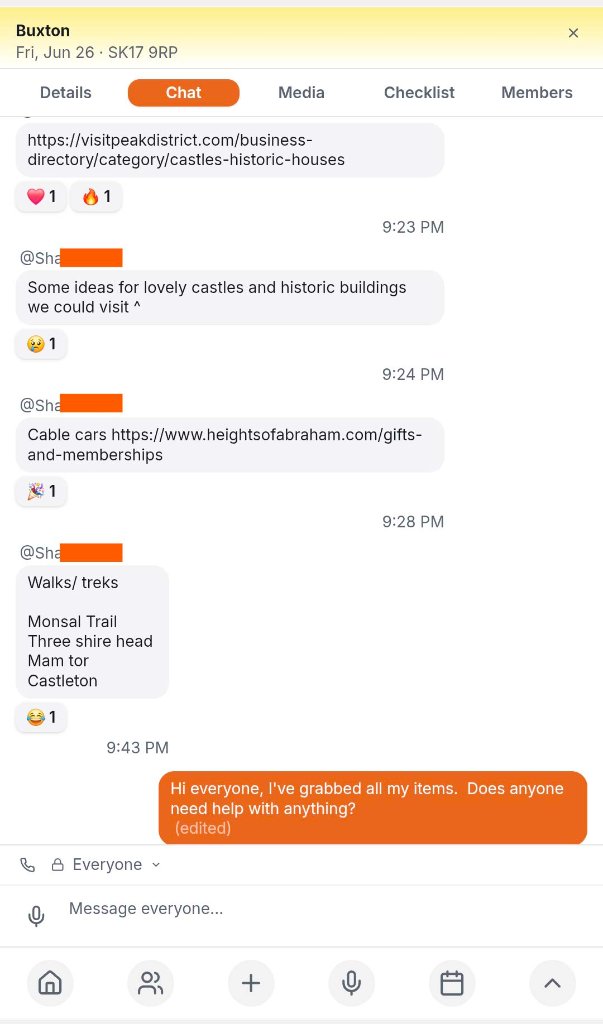
Event Chat
The Chat tab lets everyone in the event communicate in real time. Incoming messages appear in grey bubbles, your messages in orange. You can react to messages with emojis, edit your own messages, and use the privacy selector to choose who can see your message. The input bar supports text and voice messages.
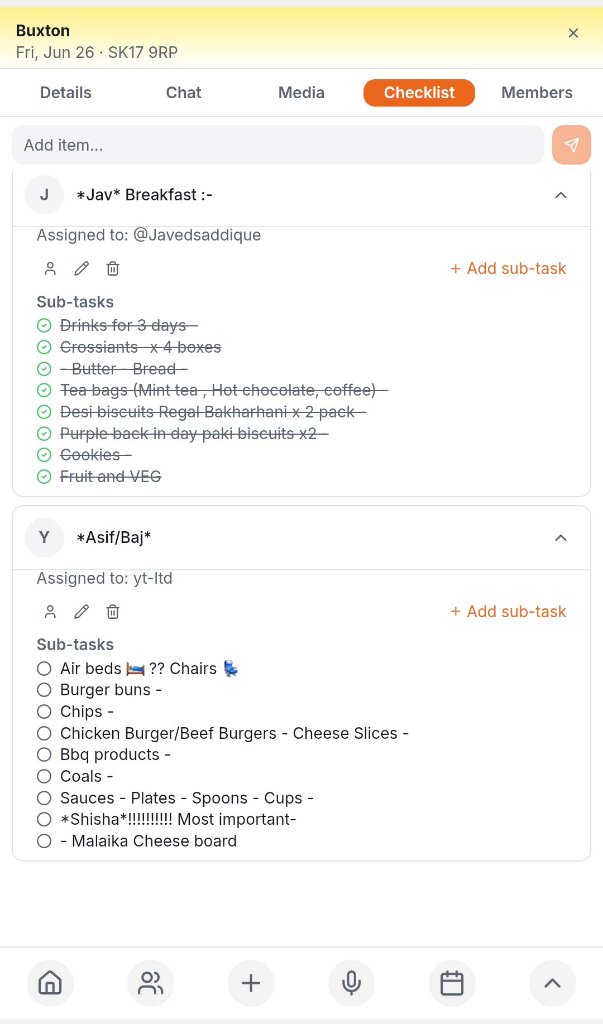
Event Checklist
The Checklist tab helps you organise tasks for an event. Add items, assign them to members, and break them into sub-tasks. Completed sub-tasks show a green checkmark and strikethrough. Each task card can be edited, reassigned, or deleted, making it easy to coordinate who's bringing what.
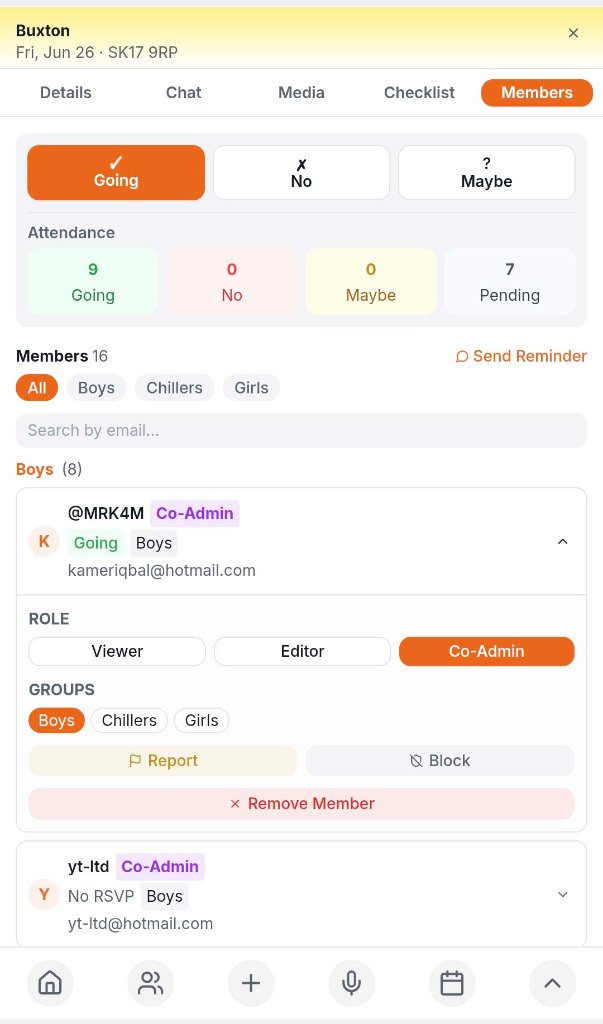
Event Members & Attendance
The Members tab shows attendance at a glance — how many are Going, Not going, Maybe, or Pending. You can filter members by group (e.g. Boys, Girls, Chillers), search by email, set member roles (Viewer, Editor, Co-Admin), send reminders, report or block members, and remove someone if needed.
Privacy & Data Protection
IMIJS is built on trust. Here are the core privacy promises we make to every user.
Data Protection
Your personal data is protected and stored securely. We only collect what's needed to run the app and never sell your information.
Encryption
All data in transit and at rest is encrypted using industry-standard protocols, keeping your messages, media, and personal information safe.
No Third-Party Data Transfer
We do not share or transfer your personal data to third parties for commercial purposes. Your data stays within IMIJS.
No Tracking
IMIJS does not track your activity across other apps or websites. We don't build advertising profiles based on your behaviour.
No Adverts
The IMIJS app is completely ad-free. You will never see third-party advertisements, banners, or sponsored content anywhere in the app.
Want to read the full details? Our complete policies are always available.
View All PoliciesDownload IMIJS
Available on iOS and Android. Join thousands of families, communities and organisations already using IMIJS.